Facets is a Windows-native program with many of the usual Windows menu functions, and plenty of added features.
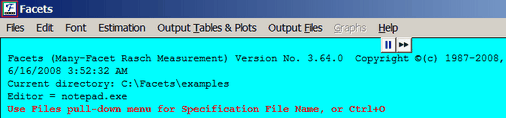
Click on the "Files" pull-down menu:
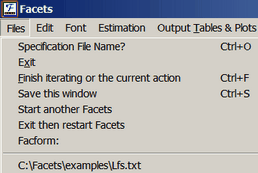
Select Specification File Name? or click on a file name at the bottom of the menu.
The Opening Screen with Specification File Name?
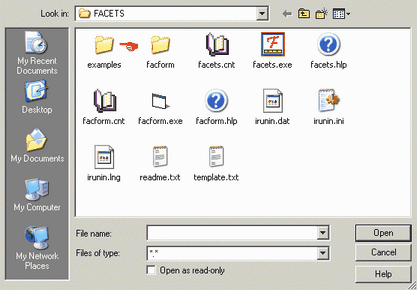
Double click on "Examples" (if not already there)
Clicking on "Cancel" takes you back to "Files" pull-down menu.
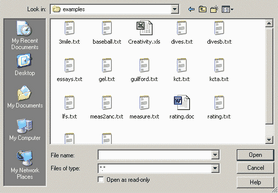
Click on the Facets specification file you prefer, e.g., essays.txt. Then click on "Open" or press the enter key.
Not sure what a Specification file looks like? click here
Want a quick way to look at file contents? click here

The Start-In Folder
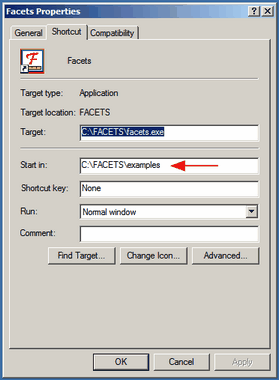
When launched from the Desktop short-cut or Start menu, Facets starts by displaying its standard folder, c:\Facets\examples. If you prefer Facets to display different folder, the easiest way is to change the "Start in" folder in the Facets short-cut on your desktop.
Right-click on  and you will see:
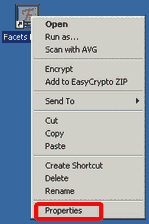
Click on Properties, and then change the "Start in" path to the one you prefer: