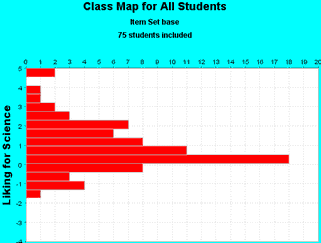
To produce this plot from ConstructMap (formerly GradeMap), an analysis and graphical program distributed in association with the book "Constructing Measures: An Item Response Modeling Approach" by Mark Wilson (2004) Mahwah NJ: Lawrence Erlbaum Associates.
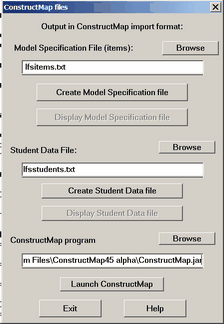
The ConstructMap option on the Output Files menu displays this box which enables a simple conversion of Winsteps control and data files into ConstructMap format. These files can then be imported by ConstructMap - see the ConstructMap User Guide. The files can be displayed after they are created by Winsteps. Excel is used if it is available. You can edit the files if you wish. If changes are made, save the files in tab-separated .txt format - which is expected by ConstructMap.
Example ConstructMap Dialog:
Winsteps: Create Model Specification file: lfsitems.txt
Winsteps: Create Student Data file: lfsstudents.txt
Winsteps: Launch ConstructMap
ConstructMap screen displays:
User name: admin
Password: bear
Please follow the ConstructMap instructions in the documentation at bearcenter.berkeley.edu/software/constructmap
You will notice that Winsteps can analyze datasets which ConstructMap cannot (without editing).
Hint: click on ConstructMap item-column headings to deactivate items causing errors.
