Probability Category Curves

Up  Previous  Next

g1


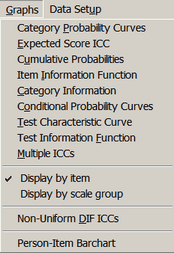
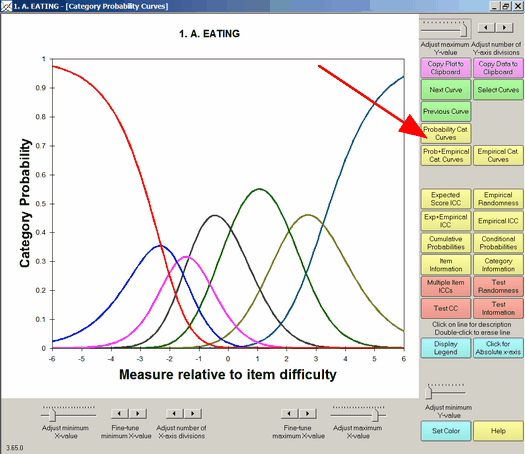
Select by clicking on "Probability Cat. Curves" or from the Graphs menu. If you don't see all this on your screen, you may have your screen resolution set to 800 x 600 pixels. Try setting it to 1024 x 768. Windows "Start", "Settings", "Control Panel", "Display", "Settings", Move "Screen resolution" slider to the right.


Traceline: You can identify an individual traceline by single-left-clicking on it. Its description will then appear below the plot. Click elsewhere on the plot to remove the selection indicators. You can remove a traceline by double-left-clicking on it. Click on the command button, e.g., "Probability Curves", to return the plot to its initial appearance.

Adjust or fine-tune minimum or maximum enables you to change the x- and y-axis ranges.

Adjust number enables you to change the number of x- and y- tick marks and labels.

Copy Plot to Clipboard places this screen on the clipboard. Open a graphics program, such as Paint, and paste in the image for editing. This only copies the part of the plot that is visible on your screen. Maximize the chart window and increase your screen resolution if the entire plot is not visible. To increase screen resolution: Windows "Start", "Settings", "Control Panel", "Display", "Settings" and move the "Screen resolution" slider to the right.

Copy Plot Data to Clipboard places the plotted data on the clipboard. Use paste special to paste as a picture meta-file, bitmap or as a text listing of the data points.

Next Curve takes you to the curves for the next grouping.

Previous Curve takes you to the curves for the previous grouping.

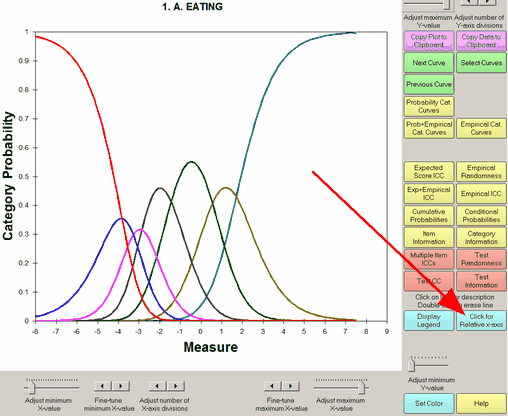
Click for Relative (Absolute) x-axis plots relative to difficulty of the current item or relative to the latent trait.

Select Curves enables you to jump to the set of curves you want to see by clicking on the list that is displayed.

Background color changes the background color behind the plot, or the color of the selected line on the plot.


Click on Close Box close in upper right corner to close.


This shows the probability of observing each ordered category according to the Rasch model. To identify a category, click on it:


g2

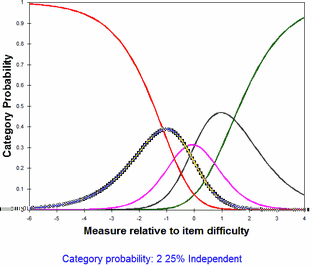
The caption can be clicked on and moved. "2" is the category score. "25% independent" is the category description from CFILE= or CLFILE=. To clear the black highlighting, click somewhere else on the plot.


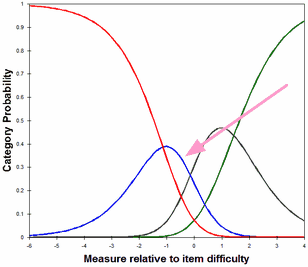
To delete the line corresponding to a category, double-click on it:
 

g3


For individual items, the horizontal scaling can be changed from relative to item difficulty to relative to the latent variable by clicking on "Click for Absolute x-axis":
 

g2


Help for WINSTEPS® Rasch Measurement Software: www.winsteps.com.