Winsteps or Facets does not install on my computer
Software requires Windows. You must have Administrator privileges
System software on your computer is blocking installation. The system software is UAC (User Account Control) or anti-virus.
- Download FacetsPasswordInstall....exe into your Downloads folder
- Disconnect from the Internet
- Reboot your computer
- turn off UAC if you have it
- stop your anti-virus software
- try installing Facets from the Downloads folder
- Reboot computer
- Reconnect to the Internet
Excel plots do not display, or Excel import/export fails:
- Please switch to a different Winsteps-Excel interface.
Launch Winsteps
Edit menu
Edit initial settings
Excel File / Plot Interface - choose a different option
OK
The change is immediate, but may require R Statistics to be installed.
- 1. We need the Windows version of Excel installed on your computer.
2. We need the Microsoft support routines to be installed. They can be downloaded from www.winstes.com/a/Winsteps-Facets-system-files.exe.
Right-click on the download and "Run as Administrator".
3. We need Excel to allow macros: www.wallstreetmojo.com/enable-macros-in-excel/
4. Try repairing Excel - Google: "Repair an Office application"
5. Launch a Winsteps analysis
6. Winsteps Edit menu
Edit Initial Settings
Excel Plot interface: try both options: winexcel.exe and also winexcel.dat
7. Plots menu: Excel plot should display
R Statistics plots do not display:
1. Check that R Statistics is installed
2. Winsteps "Output Files" menu - output a permanent R Statistics file to your desktop (or anywhere convenient)
2a. Is the file on your desktop?
2b. Does R Statistics launch automatically? or when you double-click on the file?
2c. at the R prompt > type "data"+enter key. Do the file contents display?
3. Do this once:
3a. go to your %temp% folder. Type %temp% into your File Explorer box
3b. find file WINSTEPS-ZERO.rdata and right-click on it
3c. "Send to" "Create desktop shortcut"
3d. Exit from %temp% folder
4. Do this every time after clicking on an R plot in Winsteps. Do not close Winsteps:
4a. Go to your desktop
4b. Double-click on the WINSTEPS-ZERO.rdata shortcut
4c. the R Statistics plot displays
Winsteps or Facets fail to download or fail to install:
1. Check that your internet connection is working properly.
2. Temporarily disable your firewall and anti-virus software - try downloading and installing Winsteps/Facets.
3. Enable your firewall and anti-virus software
Winsteps or Facets: problem displaying text files .txt
Winsteps asks Windows "Please display this .txt file". We expect Windows to use the same app that it uses when we double-click on a .txt file. You can see its path in:
Winsteps, Edit menu, Edit Initial settings, Editor Path (top left box)
Please change this setting in the Edit Initial Settings box. For instance, whichever works on your computer,
c:\windows\notepad.exe
c:\windows\system32\notepad.exe
c:\windows\SysWOW64\notepad.exe
C:\Program Files (x86)\Notepad++\notepad++.exe
Then click OK.
Exit Winsteps
Launch Winsteps and it should now work correctly
Similarly for Facets
Winsteps or Facets: Excel fails: "Error in loading DLL"
There is a missing or incorrectly installed Microsoft dll (dynamic link library) on your computer.
1. Please download and install: www.winsteps.com/a/WinstepsFacetsSupportModulesInstall.exe
2. If this does not solve the problem: Please do a Microsoft Office Repair: Google "Repair an Office application" for instructions
3. If this does not solve the problem, run Windows "System File Checker"
There can also be failures due to Windows permissions (UAC). High security installations are not allowed to run Excel with macros which Winsteps uses.
Error message: Mismatch at 3* I$=0
Your installation of Winsteps or Ministep is defective. Modules from two different versions are in your c:\Winsteps folder. Please delete all the files in c:\Winsteps (you can keep the Examples folder) and reinstall the software.
SAS file: "A server error has occurred ..."
This is a known SAS problem: .sas7bdat files from SAS 9.4 or later may not be compatible
with the SAS Local Provider. Please create SAS files with the SAS option:
options ExtendObsCounter=no;
see Usage Note 49496: The option EXTENDOBSCOUNTER=YES might cause the error
An alternative is to export your SAS file in .CSV format or to Excel.
WinstepsPasswordInstall...exe was reported as unsafe
This is a known bug in Microsoft Windows software. There is no problem.
Click on "View downloads" in the message box
Right-click on WinstepsPasswordInstall....exe
Properties
Look at the "Digital Signatures" tab
You should see the signature: John M. Linacre
Cancel that window
Right-click on WinstepsPasswordInstall....exe
"Run as Administrator"
Error 429, 1AD - ActiveX component can't create object
Run-time error 339 Component '.....OCX' or one of its dependencies not correctly registered
Missing or unregistered components can be: scrrun.dll, comdlg32.ocx, hhctrl.ocx, itGrid6.ocx, JwldButn2b.ocx, mschrt20.ocx, mscomct2.ocx, mscomctl.ocx, msvbvm60.dll, oleaut32.dll, olepro32.dll, riched32.dll, richtx32.ocx
1. Download www.winsteps.com/a/Winsteps-system-files.exe
2. Right click on the downloaded file and "Run as Administrator"
3. Necessary system support routines are installed and registered.
4. Winsteps and Facets should now function correctly.
Installing Under Windows 8.1, 10, 11
Please be sure you run as the Administrator by right-click "Run as administrator" when you
Install Winsteps or Facets
If the installation doesn't work,
A. Please check that there is at least 100MB of available disk space on your c: drive.
B. The software installation is done in "Administrator" mode
C. Your anti-virus software is not preventing or interfering with installation.
Then
1. Right-click on WinstepsPasswordInstall.exe or FacetsPasswordInstall.exe
2. "Send To"
3. Desktop (create shortcut)
8. Double-click on the short-cut
If the installation doesn't work, then please temporarily disable UAC (User Account Control):
1. Click Start, and then click Control Panel.
2. In Control Panel, click User Accounts And Family Safety.
3. Click User Accounts.
4. Click Turn User Account Control On Or Off.
5. "Clear the Use User Account Control (UAC) To Help Protect Your Computer" checkbox, and then click OK.
6. When prompted, restart your computer.
7. Install Winsteps or Facets
Then:
1. Click Start, and then click Control Panel.
2. In Control Panel, click User Accounts And Family Safety.
3. Click User Accounts.
4. Click Turn User Account Control On Or Off.
5. Set the "Use User Account Control (UAC) To Help Protect Your Computer "checkbox, and then click OK.
6. When prompted, restart your computer.
(a) Verify that your anti-virus software is current and active
(b) Verify that your firewall is current and active
(c) Delete folder c:\Winsteps or c:\Facets (or whatever folder will be used for the software)
(d) Reboot the computer.
(e) Check that no application program has started automatically. If so, stop it.
(f) Rerun the Facets/Winsteps etc. installation procedure in Administrator mode.
"Memory not available" with a big analysis
Please give permission for Winsteps to access more memory:
Right-click on the Command Prompt icon in the Accessories program group of the Start menu.
Click Run as Administrator.
At the command prompt, enter:
bcdedit /set IncreaseUserVa 3072
Restart the computer.
Help function - Address is Invalid
In the c:\Winsteps folder:
Right-click the Winsteps Help (yellow question mark) file
Click Properties.
Click Unblock.
The Help file should now work.
launch error - could not start the setup
Another computer program may be interacting with the Winsteps installer.
Please try installing in Windows "Safe" mode.
Restart your computer
As your computer restarts but before Windows launches, press F8.
Then double-click on the Winsteps or Facets installation software.
Winsteps Expired
Delete folder c:\Winsteps or c:\Facets (or whatever folder will be used for the software)
Rerun the installation software
Have you downloaded the correct version?
If you have just downloaded Winsteps or Facets, it is possible that you have received an earlier version. This is because some ISPs "cache" webpages or downloads. Instead of sending you the current version, they send you the version they have stored on their computer. The usual symptom of this is that your Password will not work, even though it is current. Contact us using the form below for an alternative link which the ISP will not have cached.
If you have Facets, but not Winsteps, installed on your computer, please install Ministep, it may provide a missing component.
- Microsoft 12-2008
- Security update for modules that are used in Winsteps, Facets, Ministep, Minifac, Bond&FoxSteps
- This is in addition to the Windows Update.
- Please be sure that your anti-virus software is active and up-to-date.
- Please perform the cumulative security update (10MB) from Microsoft: https://support.microsoft.com/kb/957924/
- SPSS-derived input text files
SPSS ships with Unicode UTF-8 as the Encoding default. In SPSS, change under "Properties" to Local encoding: DOS.
- Please install "SAS Providers for OLE DB" (Local Provider), free from www.sas.com
SAS conversion functonality on the SAS/SPSS pull-down menu requires the "SAS Local Provider", downloadable free (after free registration) from www.sas.com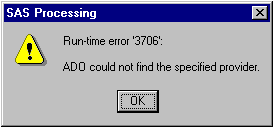
- SAS conversion problems may also be due to lack of Microsoft Data Access Components (MDAC) support in Windows. Available by download free from Microsoft.
- "!!SPSS" problem: please redownload Winsteps.
- SPSS labels truncated, e.g., "WR1_WRIT" should be "wr1_writing_1"
If SPSS is installed on your computer, then
Please rename spssio32.dll in your Winsteps folder as spssio32.hld
Test if Winsteps can read SPSS files.
If not, copy spssio32.dll from your SPSS folder into your Winsteps folder (or your Windows System32 folder)
along with any other dll's that it requests, such as icuuc32.dll, icudt32.dll and icuin32.dll.
Your version of spssio32.dll may be in the "SPSS\developer\IO_Module" folder on your disk.
- Some versions of Winsteps only support SPSS 8-character Variables Names (not 64-character). Please put long identifiers in the SPSS 256-character Variable Label field.
".... A decompression error ..."
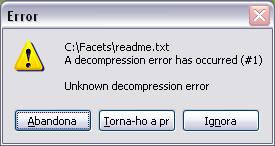
A number of situations can cause this error:
1. The installation requires Administrator rights. Please right-click on the ...Install.exe and "Run as Administrator".
2. A file to be updated is read-only. Please try installing to a brand-new folder.
3. Another program is running which is using resources that are needed for the decompression. Reboot your computer and try to install the software before starting anything else.
4. The downloaded installation file has been corrupted. Please download again.
Access Denied
1. Make sure you are in Administrator mode
2. In the Windows Task Manager (ctrl+alt+del), look at "Processes", "end process" on Winsteps or Facets.
3. Reboot your computer and try installing again immediately your computer becomes active
Directory Not Found or Access Denied
PROBLEM: Drive or Directory Not Found (3): for file: PERSON STATUS HOLD FILE in mode: OPENRDWR (37)
PROBLEM: Access denied (5): for file: PERSON STATUS HOLD FILE in mode: OPENRDWR (37)
PROBLEM: Access denied (5): for file: C:\....\ZCL152WS.TXT in mode: OPNWRITS (9)
Winsteps has an invalid or inaccessible directory for temporary work files.
Create a directory to use as a place for temporary files, e.g., C:\TEMP
If Winsteps starts long enough, go to "Edit Files", "Edit Initial Settings", "Temporary Directory for Work Files" and enter the directory, "OK"
If Winsteps won't start long enough, edit C:\winsteps\winsteps.ini, Temporary directory="C:\TEMP\"
Winsteps or Facets: plotting with Excel does not work properly.
Facets: - data input with Excel spreadsheet fails
Winsteps Plots menu or Facets Output Tables: Table 13 or Facets .xls data file
A. Please verify that Excel is properly installed on your computer for Windows. Double-click on a .xls or .xlsx file to verify correct functioning. If Excel does not launch correctly, then, Excel-based features in Winsteps and Facets are not be available. Excel "starter 2010" does not support Winsteps plots.
B. Check that there is module winexcel.exe in your Winsteps (for Winsteps) or Facets (for Facets) folder.
If not, request an update to the current version of Winsteps or Facets. Please provide your current version number and license details.
Please compare the dates of Winsteps.exe and Excel.exe on your computer. If Excel.exe is later than Winsteps.exe, then Winsteps.exe may not be compatible.
C. Use Ctrl+Alt+Delete and look at the Task Manager list to check that no copies of Excel are still running in your computer.
"End Process" to stop any that are, adn try again.
C. Do you have Excel installed on your computer?
If you do not have Excel, then the "plots" menu in Winsteps will not function.
If you do have Excel on your computer, then please re-register it.
Windows "Start" menu
"Run" box
Please type into the Run box:
Excel.exe /UnregServer
If this fails, you may need to type in the path to your copy of Excel. "Search" or "Find files" to locate your copy of Excel.exe
If this succeeds, please type
Excel.exe /RegServer
Then rerun Winsteps.
D. If you still have problems, please email winsteps.com with a copy of your computer screen showing the problem. Press PrintScreen key and paste into your email message.
E. Excell 2007: Winexcel: Error 438 - Object does not support this property.
This may be due to a bug in Excel 2007. Please reduce the number of items to be plotted to 82 or less using "Specification" menu, IDELETE=
F. "Automation errors" are usually due to an incomplete or defective Excel installation. Winsteps asks Windows for a connection to Excel. Windows replies "Can't do it!". Here is a procedure that may solve the problem:
Reboot (important!) - this insures any file used by Office is fully released.
Delete unneeded temporary files - the program at this link will do that for you: Temporary File Deletion Program
Right click on the Windows start button, and select Control Panel, Programs and Settings.
Find Office and either click on it and then Change up at the top, or right click and select Change.
A repair options dialog will appear. There is both a quick repair and an online repair.
Do the quick repair, run Winsteps and see if all is fixed. If not, close Excel and do the online repair
G. If you have two versions of Excel on your computer, they may be confusing Windows.
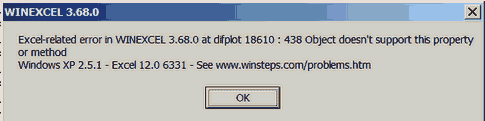
Excel-related error in WINEXCEL .. "The default chart type cannot be applied to the selected data"
Excel's "Default Chart Type" may not be valid. Please change it:
1. Insert any chart into any Excel worksheet
2. Right click on the chart.
3. "Change Chart Type" from the context menu. The "Change Chart Type" box displays.
4. Click on the first Line chart
5. Click on the "Set as Default Chart" button at the bottom of the Chart Type dialog box.
6. Click on OK
Windows 2000 and Excel 97 problems
In Excel:
Tools>Options>General
uncheck "Ignore other Applications"
Exit Excel and try again

If this doesn't work try to re-register Excel:
Close Excel first and
On the Windows Taskbar
1) Star>Run "excel.exe /unregserver"(no quotes)>OK.
2) Start>Run "excel.exe /regserver"(no quotes)>OK.
See the space between exe and /regserver

You might have to designate a full path to excel.exe.
In that case Start>Run "C:\yourpath\excel.exe /regserver"(no quotes)>OK.
Display of Graphs is partially off-screen.
Screen resolution is not high enough.
Start
Settings
Control panel
Display
Settings
set Screen Resolution to 800 x 600 or better
File suffixes not shown in dialog boxes
This is a Windows option
My Computer
Tools or View (depends on Windows version)
Folder Options
View
Check everything that says "Display" or "Show"
Uncheck everthing that says "Hide" or "Do not show"
Install Dialog Box displays every time
Clicking on Graphs, Plots, or Data Setup, displays a dialog box requesting installation of a Microsoft Office (or other) feature. You must click on "Cancel" several times, before the Winsteps function starts.
This is caused by an error during installation of the Microsoft Office (or other) feature.
Uninstall the Microsoft Office (or other) feature. "Start", "Settings", "Control Panel", "Add or remove Programs"
If you need the feature, reinstall it choosing the option "All from my computer", not "Install on demand".
Your computer has a version of RICHTX32.OCX (or COMDLG32.OCX ...) already installed. This is a support routine to Microsoft's Visual Basic system, supplied by Microsoft. A version compatible with Winsteps/Facets is part of the Winsteps/Facets installation package.
Winsteps/Facets Installation has not automatically replaced the existing version of RICHTX32.OCX (or COMDLG32.OCX ...) on your computer because that may cause some other program to fail. A solution is to find the version of RICHTX32.OCX already on your computer, and rename it to RICHTX32.OCY (or COMDLG32.OCY ...) .
Then reinstall Winsteps/Facets. It will install its own version of RICHTX32.OCX (or COMDLG32.OCX ...) .
If some other computer program stops working (which is very unlikely), then rename RICHTX32.OCX (or COMDLG32.OCX ...) as RICHTX32.OCZ (or COMDLG32.OCZ ...) , and rename RICHTX32.OCY (or COMDLG32.OCY ...) back to RICHTX32.OCX (or COMDLG32.OCX ...) - and vice-versa when you want to use Winsteps/Facets.
system32.dll (or other dll or ocx) missing
system32.dll is part of a virus. Update your antivirus software and do a complete scan before going further.
OleAut32.dll outdated
This routine supports Windows automation. Winsteps and Facets do not run under Windows-95 and 3.1
Download and install the current version of oleaut32.dll from Microsoft
Winsteps Install Failure
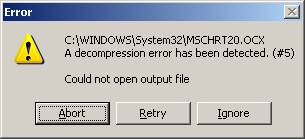
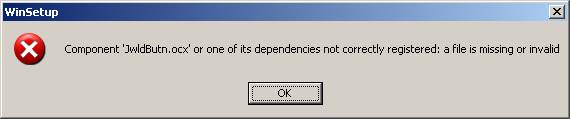
You may not be authorized to install software on your computer. Install in Administrator Mode
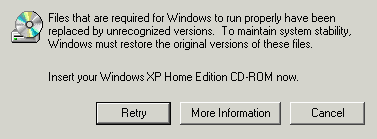

The Windows Protection Feature is reporting an attempt to replace a protected file. Click "Cancel" and then "Yes". Winsteps and Facets do not replace existing Windows system files. This may be occurring because the Installer is refering to a system file on your computer by an equivalent valid name, e.g., STDOLE2.TLB, stdole2.tlb, Stdole2.tlb and StdOle2.tlb are all the same file, or because the Windows Protection Feature is attempting to protect Winsteps or Facets files. If you do experience instability after installing Winsteps or Facets, or discover another reason for these message boxes when installing Winsteps or Facets, please email Mike Linacre, author of Winsteps: mike \at/ winsteps.com.
WordPad problems
Although the analysis run was successful, the tables cannot be displayed.
- WordPad may be missing or support routine such as MFC30.DLL or MFC42U.DLL or MFCANS32.dll:
1. Open Explorer
2. Browse into C:\Windows\Inf
3. Locate Write.inf
4. Right click it, select Install from pop up menu
5. Insert Windows CD if asked for it.
- If there is more than one version of Wordpad.exe on your computer, Winsteps may try to use the wrong one.
In Winsteps, click on "Edit" pull-down menu, then "Edit Initial Settings".
Check that the version of WordPad.exe shown is in the "Accessories" folder.
If this is the case, then put "Notepad.exe" as the Editor Path and click OK. Restart Winsteps.
If this is not the case, please type in the correct location of WordPad.exe. To find WordPad's exact location in "Accessories", do a "search" or "find" on your computer for WordPad.exe (include System and Hidden files in the Search). - You can use a different text editor, e.g., NotePad++ or TextPad
In Winsteps, click on "Edit" pull-down menu, then "Edit Initial Settings".
Check that the version of WordPad.exe shown is in the "Accessories" folder.
If this is the case, then put "Notepad.exe" as the Editor Path and click OK. Restart Winsteps.
This is usually a problem with Windows:
Create a new folder C:\TEMP on the C: drive
Right-click on "My Computer" on your Desktop
Click on "Properties
Click on "Advanced" tab
Click on "Environment Variables" button
Edit the User Environment variables
TMP to be C:\TEMP
TEMP to be C:\TEMP
Click on OK
Click on OK
Winsteps Graphing or Winsteps data setup do not work
These are executed as separate modules.
Open the folder: c:\winsteps
Double click on winsetup.exe - does it start properly?
Double click on winvbexe.exe - it should reply "Please start this from the Graphs menu in Winsteps or Ministep" - does it?
Some versions of Winsteps require that the correct version of Winstepx.dll is active. Delete all copies (including any in the System32 folder) and reinstall Winsteps.
Message: Cannot find the file '.... command.com'
In your AUTOEXEC.BAT file, check that COMSPEC= points to the correct location of command.com.
If so, please create the specified directory and copy command.com into it.
You can find command.com by using Find Files or Search from the Start menu.
Bubble Chart does not display
The Bubble Chart requires a properly installed version of Excel on your computer. Some versions of Winsteps also require a properly installed version of WINSTEPX.dll. To make sure that WINSTEPSX.dll is recognized by Windows, it needs to be registered:
Click on "Start"
Click on "Run"
Into the run box type: regsvr32 c:\winsteps\winstepx.dll
A box should display saying "DllRegisterServer .... succeeded"
Rerun Winsteps.
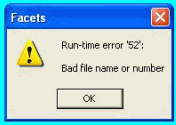
If "Run-time error 52: Bad file name or number" is reported when Facets is launched, it can indicate that you do not have enough available disk space or computer RAM memory. "Disk Cleanup" your disk drive (Start, Programs, Accessories,System Tools). Terminate other running programs
Uninstall Problems
If "Uninstall" fails from the Control Panel then
(A) Delete the Winsteps (or Facets) folder or sub-folder
(B) Windows "Start", "Run", "Regedit" - and then delete all keys including the word "Winsteps" (or "Facets")
(C) Winsteps (or Facets) also installs in the Windows System folder various Microsoft components if they are missing
from your Windows version. Do not delete these. They may be used by other programs. They are:
COMDLG32.OCX
RICHTX32.OCX
MSCOMCTL.OCX
MSCHRT20.OCX
MSCOMCT2.OCX
MSVBVM60.dll
OleAut32.dll
OlePro32.dll
RichEd32.dll
SCRRUN.DLL
"Help" does not work in versions of Winsteps before 2007 or so
Early versions of Winsteps used the Microsoft "Winhelp" help system. Microsoft discontinued this in 2006, but it can be added to current versions of Windows with some effort.Winsteps and Facets on a Mac
Winsteps and Facets are Windows programs. On earlier Macs they run under Virtual-PC. On later Macs, under Apple Boot Camp or Parallel, Wine, Fusion.
A user reports: using VMWare Fusion (a program that allows the use of a Windows OS within a virtual drive on the Mac), I was able to fully run Winsteps. All the tables run very well. The only glitch is with the Excel plots, however, there's an easy resolution for that. All you need to do is install a PC version of Microsoft Office on that PC-virtual drive and it works like a charm.
Winsteps uses PC-format text files, not Mac-format text files. If you create or edit text files in Mac mode, please save them in PC txt format.
Another user writes: I am running it on a Mac using VMWare Fusion. Winsteps runs with no problem in the VMWare environment but I am sure the Winsteps exe file will not run in the MAC OS without some kind of virtual machine program such as those mentioned. And the second part is correct as well, you have to purchase a copy of Windows (I use XP Home Edition) to run within VMWare or whichever virtual machine program you choose
Winsteps under Linux via Wine
Stuart Luppescu reports: "Winsteps runs quite well in Wine under Linux. (Wine is a set of native Linux functions that emulate Windows system calls, enabling a lot of Windows programs to run in Linux. There are a few minor problems, such as graph axis labels not showing up, but in general it works fine."
Winsteps under Mandrake Linux 10.0 via CrossOver Office 3.01
Winsteps functions properly, but the following problems are reported:
1. The HELP file cannot be displayed because winhelp32 functions are not supported by the Windows emulator.
2. To display the graphs, one has to briefly minimize the display window to correctly load the next graph.
3. The Diagnosis menu contains the Output Tables menu items and the Output Tables menu contains the Output Files menu items.
The Output Files menu is empty. Workaround: Access the Diagnosis menu via the Output Tables, see Diagnosis Menu.
Type in your email address
Software title
Version number (or approximate date of download)
Name of your Windows version (XP, ME, etc.)
Include a picture of your computer screen when the program failed:
(press PrintScreen key to copy screen to clipboard, then paste Ctrl+V into your email message.)
Description of the problem (the more information, the better)
We will respond as quick as possible
