Graphs pull-down menu

Up  Previous  Next

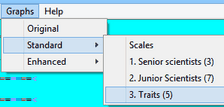
Click on "Graphs":

clip0020


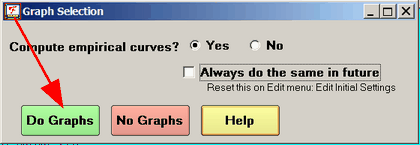
You may be asked if you want to compute the empirical curves, or only display the model curves. Check "Always do the same in future", and click "Yes" unless you have very large datasets. Click on "No" if you don't need to see the empirical curves. This can be reset in Edit Initial Settings.


clip0021


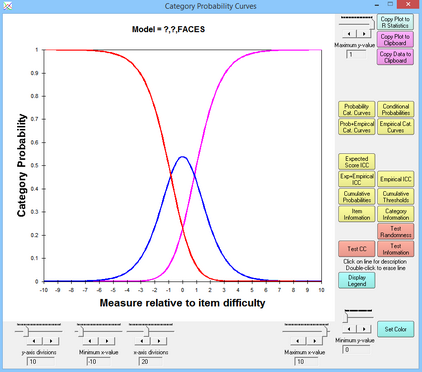
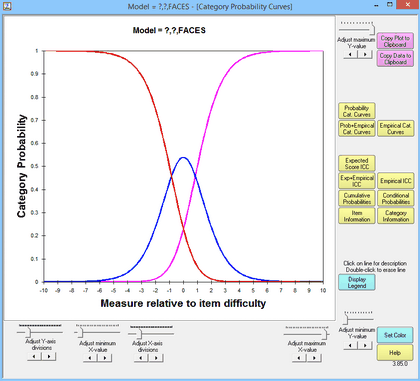
Then the Graph window will display graphs looking like:
 

clip0022


The probability curves will display. Graphs are plotted relative to the central difficulty of each item or scale group.


The buttons are:

Copy Plot to Clipboard places this plot on the clipboard as a graphic. Open a graphics program, such as Paint, and paste in the image for editing, or paste directly into a Word document.

Copy Plot Data to Clipboard places the plotted data on the clipboard. This can be pasted into an Excel worksheet so that you can use it to construct your own graphs.


Next Curve takes you to the curves for the next Group.

Previous Curve takes you to the curves for the previous Group.

Select Curves enables you to jump to the set of curves you want to see by clicking on the list that is displayed. Click on the desired curve.


Probability Cat. Curves plots the category probability curves according to the model. There is one curve for each category. They sum vertically to 1.0. Click on a line to obtain the category.

Empirical Cat. Curves plot the empirical category frequency points according to the data. The points are joined by lines for ease of viewing.

Prob.+Empirical Cat. Curves plots both the model and empirical category curves.


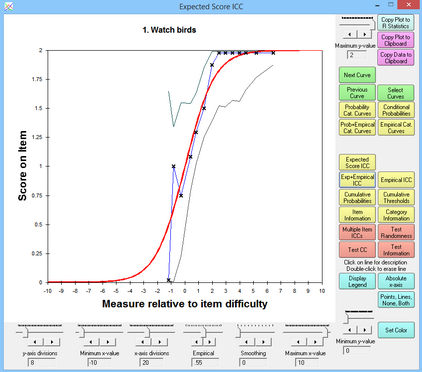
Expected Score ICC plots the model-expected item characteristic curve, and the empirical one, shown by X. One curve is shown for each rating (or partial credit) scale.

Empirical ICC shows only the empirical, data-derived, item characteristic curve.


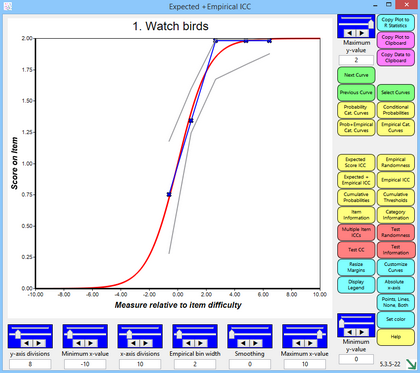
Exp+Empirical ICC plots both the model-expected item characteristic curve, and the empirical, data-derived, curve, together with a confidence band for the empirical around the model curve.

empcurve


The solid red "model" line is generated by the relevant Rasch model. For a test of dichotomous items, these red curves will be the same for every item with the same rating scale structure. The empirical blue line is constructed from the observed frequencies along the variable, marked by x. The empirical ("x") x- and y-coordinates are the means of the measures and ratings for observations in the interval.


The upper green line (and the lower grey line) are at two model standard errors above (and below) the model "red line", i.e., form a two-sided 95% confidence band. The distance of these lines from the red line is determined by the number of observations in the interval, not by their fit.


Cumulative Probabilities plot the sum of category probabilities. The category median boundaries are the points at which the probability is .5. Click on a line to obtain the category identification.

Conditional Probabilities plots the model ogives for adjacent pairs of categories. Click on a line to obtain the category pairing.

Information Function plots the Fisher statistical information for the item. This is also the model variance of the responses, see RSA p. 100.

Category Information plots the item information partitioned according to the probability of observing the category. Click on a line to obtain the category number.


Display Legend (Hide Legend) displays identification for all lines on the plot

Absolute x-axis displays the curves positioned on the latent variable, rather than relative to the element difficulty. Relative x-axis positions the curves relative to the element difficulty.

Points, Lines, None, Both controls display of the empirical curves.

Smoothing smooths the empirical curves.

Set color changes the color of the currently selected part of the plot.

Help displays this page.


The graphical display is controlled by:

Adjust or fine-tune minimum or maximum enables you to change the x- and y- scale ranges.

Adjust number of divisions enables you to change the number of x- and y- tick marks and labels.

Empirical interval sets the width of the interval on the latent variable summarized by each x on the empirical lines. Displays only when empirical lines are displayed.


On the plot:

Traceline: You can identify an individual traceline by single-left-clicking on it. Its description will then appear below the plot.

You can display only one traceline by double-left-clicking on it. Other tracelines will disappear. Click elsewhere on the plot to remove the selection indicators. Click on the command button, e.g., "Probability Curves", to rerun the plot to its initial appearance.


Click on Close Box close in upper right corner to close the Graphs menu.

next


Help for Facets Rasch Measurement Software: www.winsteps.com.