From the Edit menu, Edit Initial Settings allows Facets standard functions to be pr-set or altered
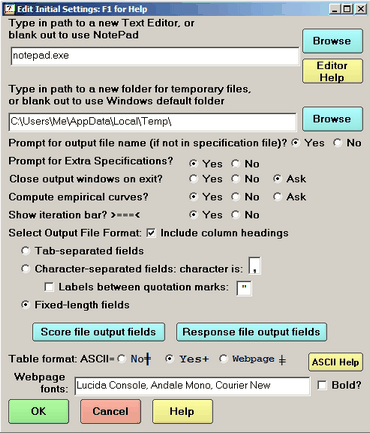
To change the text editor, type in the path to your preferred editor (or "browse" to it) and click the OK box (or blank out the file name to use Notepad). Test the new editor by clicking on "Edit new file =" in the Edit pull-down menu. Useful replacements for Notepad include NotePad++ freeware: notepad-plus-plus.org
The folder for temporary files is usually the one assigned by Windows, but you may change this to the folder of your choice, for instance, on another disk drive.
Prompt for output file name (if not in specification file)? If no output file is specified with Output=, then a standard output file name is constructed by Facets. To have this automatically accepted, click on the "No" option.
Prompt for Extra Specifications? If Extra Specifications are new to be entered when Facets run, then specify No to remove unneeded user screen.
Close output windows on exit? If secondary windows are open when an analysis is ended, you are prompted as to whether the windows are to be closed. Click on the options to always close the windows (Yes) or leave them open (No) or be asked every time (Ask).
Compute Empirical Curves? When the Graphs menu is accessed, and there is a large amount of processing needed to produce the empirical response curves, then you are asked if you want this processing. There is no need to do it if you only want to look at the model curves.
Show iteration bar? >====< Usually "Yes", but there are some Unicode versions of Windows in which displaying the iteration bars noticeably slows down Facets.
Select Output File Format: this sets the choices for the graph, score, and residual output files: column headings, quotation marks, field format.
Tab-separated fields: fields in the output files are separated (delimited) by tab characters
Character-separated fields: fields in the output files are separated (delimited) by the specified characters
Labels between quotation marks: "Henry" or Henry (required by some data-input software).
Fixed-length fields: fields occupy fixed columns in the output files (easiest to read by eye).
Score file output fields: identifies which fields to include in the score file output.
Response file output fields: identifies which fields to include in the residual/response file output.
Table format: sets the default value for ASCII=. This formats the Output Tables for best display in ...
ASCII=Yes |
Windows, using a fixed-space font such as Courier New. |
ASCII=No |
MS-DOS or using a PC-CHAR font, such as Letter Gothic Legal. |
ASCII=Webpage |
HTML using a fixed-space font such as Courier New. |
Webpage fonts |
specifies the fonts to use for webpage display Bold? Is the webpage font to be in bold face? |
OK: actions the changes and saves as default values
Cancel: exits from this dialog box without changing the settings
Help: displays this page
To change the "Current Directory" or "Working Folder" when Facets launches, change the "Start in:" folder in the Facets shortcut on your Windows Desktop or Start menu:
Right-click on the shortcut
Type the folder name into "Start in:"
Click OK
