This interface simplifies setting up Winsteps control and data files. It can be used for entering data with matching specifications or for constructing the specifications that match existing data. For instructions, see Winsteps Tutorials.
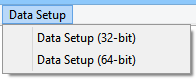
When you launch Winsteps, the Welcome dialog box displays, or use the Data Setup pull-down menu. Click on "Control + Data Setup Procedure" to launch the 32-bit version of Data Setup. If your computer does not support 32-bits, then the 64-bit version launches.
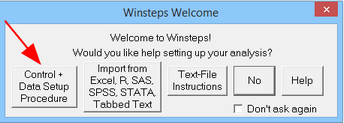
If this does not display, then go to Edit Initial Settings and check-mark "Show Data-setup dialog" and then click on OK. Restart Winsteps.
Control + Data Setup Procedure
If you are already in Winsteps, then on the menu bar:
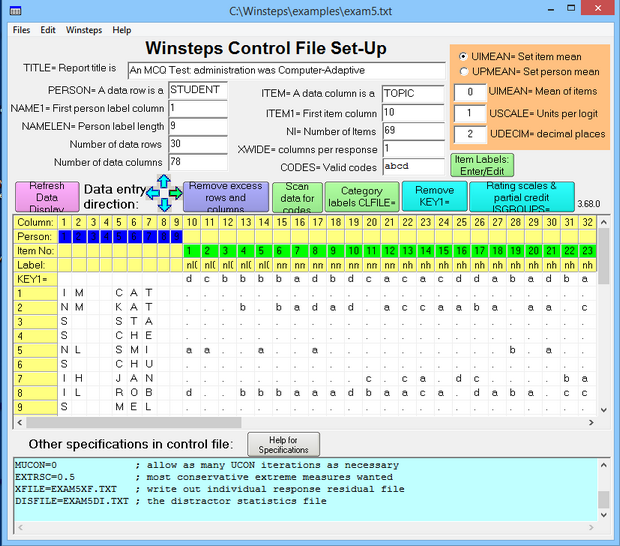
32-bit Data Setup displays this Control File Set-Up screen.
64-bit Data Setup displays this Control File Set-Up screen:
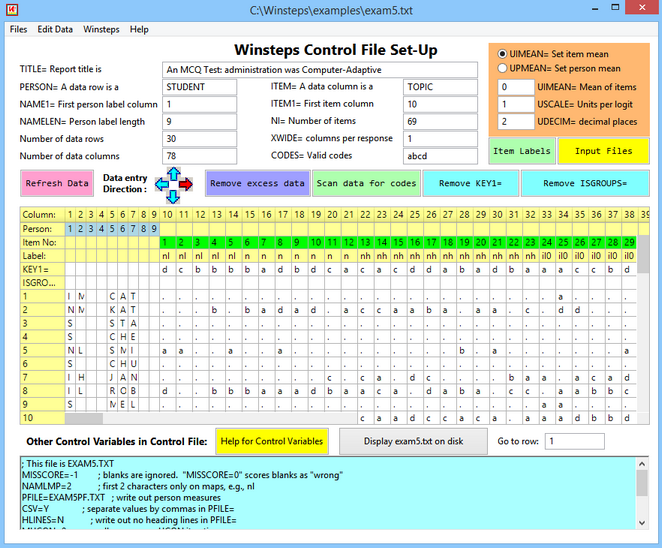
A multiple-choice test key, KEY1=, can be specified, if desired.
Items can be clustered into similar response-structure groupings using ISGROUPS=, using a one character code for each grouping.
Use the Files menu to read in pre-existing control or data files. Use the boxes and the data grid to enter new control and data information. Use the Files or Winsteps menu to Save what you have done.
After performing the set-up, save the file and return to Winsteps using the Winsteps pull-down menu.
Import from Excel, R, SAS, SPSS, STATA, Tabbed Text
Click on this for the Excel/RSSST dialog box:
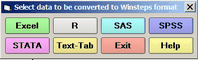
This constructs a Winsteps control and data file from a pre-existing Excel, R, SAS, SPSS, STATA, or Tabbed-Text data file. This has the same functionality as the Excel/RSSST menu
Text-file Instructions.
Shows the Help page: Do-it-yourself control and data file construction
All Winsteps control and data files are in text format. These can be edited with Notepad and most other word processing and text editing software.
No.
Closes this dialog box. Use "Open File" to select a control file.
Don't ask again.
Click on this to make "No." the continuing option. To reinstate this dialog box, go to Edit Initial Settings and click on the "Welcome" option and then OK. Restart Winsteps.
Help
Click on this for this Help page.

