Excel datasets, with their data correctly formatted, can be specified directly to Facets.
Data= Exceldata.xls
Dvalues= is useful for constant values in the data
Excel-format data files.
Excel worksheets, with their data correctly formatted, can be specified directly to Facets.
Data = Excel filename.xls
Data = Creativity.xls
or, if the data worksheet is not the first worksheet, usually Sheet,
Data = Excel filename.xls(sheet number)
Data = Creativity.xls(2)
Dvalues= is useful for constant values in the data
Facets analyzes integer data in the range 0-255. Excel is a good means of reformatting your data, if necessary.
(a) Set up the Excel spreadsheet as follows:
Imagine a three-facet situation: judges, examinees and items.
In Row 1, put ;judge - the semi-colon is so that Facets will treat this as a comment. Then examinees and items
If you see:
First active data line is
judge examinee items ratings
Processed as judge, examinee, items, ratings, ,,
>Check (2)? Invalid datum location R0,0,0,0, at or near line 1. Datum "" is too big or not a positive integer, treated as missing.
Then change "judge" to ";judge" to make the heading row a comment for Facets.
In column A, put the judge number
In column B, put the examinee number
Either:
In column C, put the item number range as a character constant, e.g., 1-5
to enter this as text, type: '1-5 , i.e., apostrophe 1-5
If this doesn't work,
type 1-5a the "a" will be ignored by Facets
or
type 1_5 an underline can be used instead of a minus sign.
In columns D-H put the judges' ratings of the examinee on items 1,2,3,4,5
Entries beyond column H will be ignored.
Or:
Alternatively, put the judge number in columns A, the examinee number in column B, include in the specifications:
Dvalues = 3, 1-5 ; place 1-5 in data facet 3
and in columns C-G put the judges' ratings of the examinee on items 1,2,3,4,5
Here is what this looks like for the Creativity data. It is in a file called Creativity.xls.
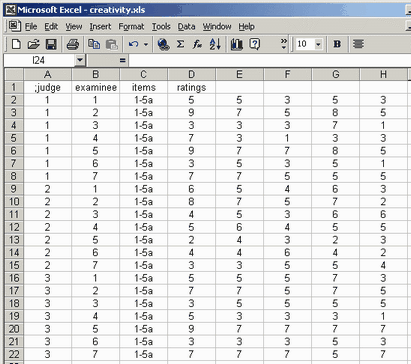
Columns to the right of the data are usually ignored by Facets.
(b) Specify this Excel worksheet directly with the Data=
Data = Creativity.xls
or, particularly if Windows reports "Low memory" or "Out of memory",
Use "save as" CSV (Comma-delimited) (*.csv) to obtain a file in the Data= format, e.g, creativity.csv
;examinee,;judge,items,ratings,,,,
1,1,1-5,5,5,3,5,3
2,1,1-5,9,7,5,8,5
3,1,1-5,3,3,3,7,1
4,1,1-5,7,3,1,3,3
5,1,1-5,9,7,7,8,5
6,1,1-5,3,5,3,5,1
7,1,1-5,7,7,5,5,5
1,2,1-5,6,5,4,6,3
2,2,1-5,8,7,5,7,2
3,2,1-5,4,5,3,6,6
4,2,1-5,5,6,4,5,5
5,2,1-5,2,4,3,2,3
6,2,1-5,4,4,6,4,2
7,2,1-5,3,3,5,5,4
1,3,1-5,5,5,5,7,3
2,3,1-5,7,7,5,7,5
3,3,1-5,3,5,5,5,5
4,3,1-5,5,3,3,3,1
5,3,1-5,9,7,7,7,7
6,3,1-5,3,3,3,5,3
7,3,1-5,7,7,7,5,7
c) For the specifications, set up an outline skeleton of the specification file:
Title="Creativity using Excel"
Facets=3
Positive=1,2,3
Noncenter=1
Model=?,?,?,R9
Labels=Build ; this will tell Facets to build a list of elements
1,Judges
*
2,Examinees
*
3,Items
1=Attack
2=Basis
3=Clarity
4=Daring
5=Enthusiasm
*
Data=creativity.xls
d) Save your specification file as Cspec.txt and analyze it with Facets.
The output reports:
Table 2. Data Summary Report.
....
This list is generated by Labels=Build. Please copy and paste into your specification file, where needed
Labels=
1, Judges, ; facet 1
1 =
2 =
3 =
*
2, Examinees, ; facet 2
1 =
2 =
3 =
4 =
5 =
6 =
7 =
*
e) Open Cspec.txt and paste the extra element numbers into the Labels=list
Labels=
1, Judges, ; facet 1
1 =
2 =
3 =
*
2, Examinees, ; facet 2
1 =
2 =
3 =
4 =
5 =
6 =
7 =
*
3,Items
1=Attack
2=Basis
3=Clarity
4=Daring
5=Enthusiasm
*
f) Save your revised Cspec.txt specification file, and analyze it with Facets.
The analysis should report correctly.
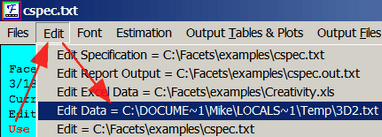
g) If the data appear to be incorrect, verify that Facets has imported your Excel datasheet correctly, look at the temporary "Data =" file in the Edit pull-down menu.